🔥 STOCK CLEARANCE:
Save heavily on Open-Box Apple Accessories.
Shop the Sale ›




iPhone, MacBook & Laptop Troubleshooting Guide:
50+ Problems Explained in Simple Terms
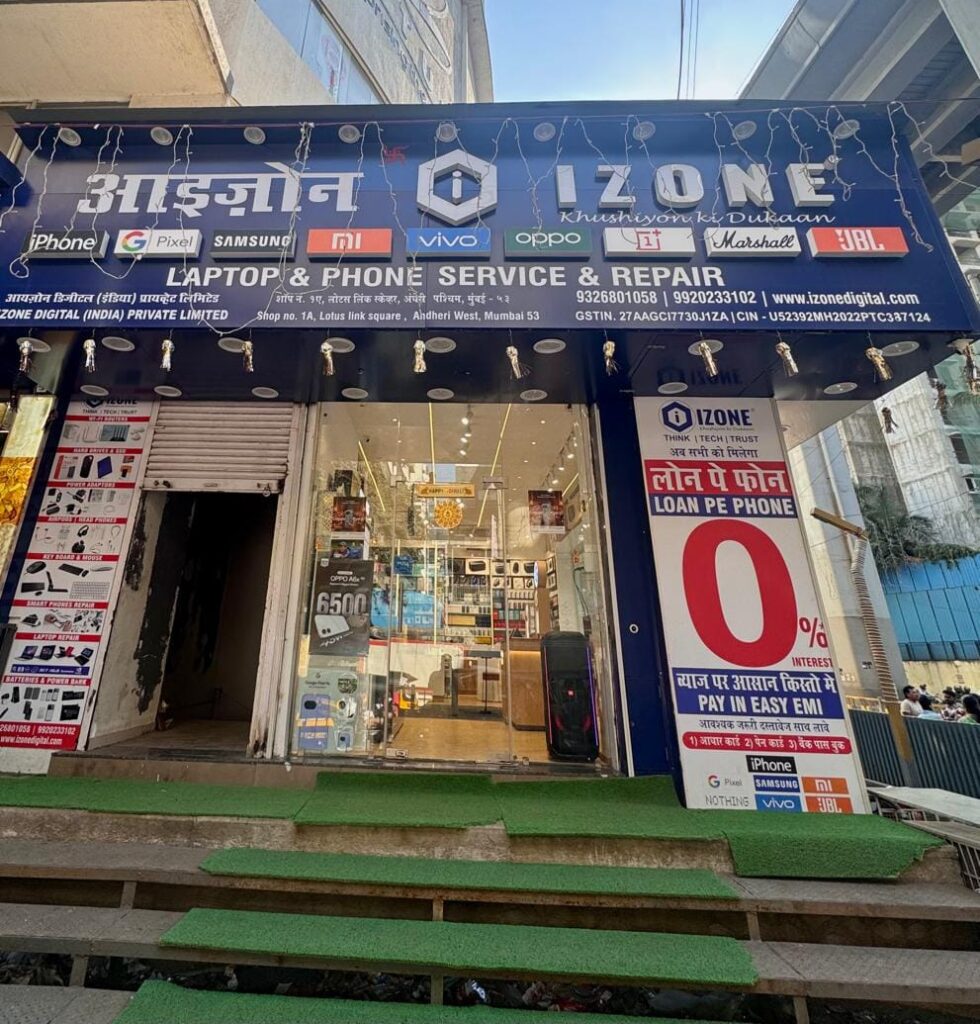
From Lightning adapters that suddenly stop working to MacBook batteries that drain in minutes — this guide explains the cause, the fix, and when to visit a professional. Written with 27 years of Apple expertise by iZone Digital, Andheri West, Mumbai.
📱 iPhone Repair
💻 MacBook & Laptop
🎧 Audio & Adapters
⚡ Charging Issues
🔒 AppleCare+
🎧
1. Audio & Adapter Problems
Why is my Lightning to 3.5mm adapter not working on iPhone?
This is one of the most searched questions by iPhone users. Below we explain every common cause and the exact fix for each one.
This is one of the most searched questions by iPhone users. Below we explain every common cause and the exact fix for each one.
Q: My Lightning to 3.5mm headphone adapter stopped working. Why?
If your Lightning to 3.5mm headphone adapter suddenly stopped working, it is most likely caused by one of these reasons:
- Duplicate or non-original adapter — most cheap adapters sold online do not include Apple's certified chip.
- iOS update compatibility — after some iOS versions, Apple blocks uncertified accessories.
- Dust in the Lightning port — lint or debris can block the connection.
- Faulty headphones or AUX cable — sometimes the adapter is fine but your earphones are the problem.
✅ Solution
First, clean your Lightning port with a soft brush or wooden toothpick. Then test the adapter with different headphones. If it still does not work, switch to a genuine Apple Lightning to 3.5mm adapter — certified adapters work reliably after every iOS update. You can find the original at iZone Digital in Andheri West.
Q: iPhone says "Accessory Not Supported" — what does that mean?
The "Accessory Not Supported" error appears when your iPhone cannot verify the accessory you plugged in. This almost always means:
- The adapter is not Apple-certified or uses a duplicate chip.
- The accessory firmware is incompatible with your current iOS version.
- There is dirt or moisture in the Lightning port causing a short circuit.
⚠️ Warning
If you see this error repeatedly even with known genuine accessories, the Lightning port itself may have a hardware issue. This requires a professional port repair — visit iZone Digital for a free diagnostic check.
✅ Solution
Clean the Lightning port, restart the iPhone, then try a known genuine Apple accessory. If the error persists, the port needs professional cleaning or replacement at our Andheri West store.
Q: One side of my AirPods is not working — how do I fix it?
If only one AirPod is producing sound, try these steps in order:
- Clean the speaker mesh with a dry cotton bud — earwax buildup is the #1 cause.
- Reset the AirPods — put them in the case, hold the back button for 15 seconds until the LED flashes amber, then white.
- Forget the device from Bluetooth settings and re-pair.
- Update the AirPods firmware — keep them in the case near your iPhone for 30 minutes while charging.
💡 Tech Tip
If cleaning and resetting do not fix it, the issue is usually a hardware fault in one AirPod. Apple warranty replacement is the best solution — iZone Digital can help you process AppleCare+ claims.
Q: Why does my phone sound muffled on calls?
Muffled call audio is usually caused by:
- Blocked earpiece speaker — dust or debris over the top speaker grill.
- Damaged microphone — if the person on the other end hears you badly, the mic may be faulty.
- Software issue — iOS/Android audio routing bug after an update.
- Screen protector interference — some thick protectors block the sensor or speaker.
✅ Solution
Clean the earpiece with a soft dry brush. Try a call on speaker mode to test if the issue is the earpiece or the mic. If the problem continues after cleaning and a restart, the microphone or speaker module needs replacement — bring your phone to iZone Digital for same-day diagnosis.
Q: MacBook speaker is making crackling or popping noise — why?
MacBook speaker crackling is a known issue on certain models. Causes include:
- Hardware fault in the speaker module (common on MacBook Pro 2016–2019).
- Software audio bug — especially after macOS updates.
- Dust or moisture inside the speaker enclosure.
✅ Solution
Try resetting the NVRAM (shut down, then hold Option+Command+P+R during startup) and updating macOS. If the crackling persists, it is a hardware speaker fault — Apple may repair this under warranty. iZone Digital also services this issue with genuine parts.
🏥
Audio problems at your device? Get it checked for free.
Bring your iPhone, AirPods, or MacBook to iZone Digital — Andheri West, near D.N. Nagar Metro Station. Same-day diagnostics available.
Visit Store →
⚡
2. Charging & Cable Issues
Charging problems are among the most common issues we see daily at iZone Digital.
Here are detailed explanations for each one.
Q: How do I check if an Apple charger is original or fake?
Fake chargers are extremely common in Mumbai's local markets and online. Here is how to tell the difference:
- Weight — genuine Apple chargers are noticeably heavier than duplicates.
- Build quality — original units have smooth seams, no rough plastic edges.
- Print quality — Apple text on the charger is crisp, centered, and has no smudges.
- Price — if it costs less than 50% of the MRP, it is almost certainly fake.
- Serial number — check it on Apple's official website for verification.
💡 Tech Tip
At iZone Digital we sell only 100% genuine Apple accessories with proper GST billing, so you can always verify authenticity yourself.
Q: iPhone charging very slowly after update — how to fix?
Slow charging after an iOS update usually happens because:
- The phone is doing background tasks after the update (app re-indexing, Siri setup).
- You are using a low-wattage or duplicate charger.
- Optimized Battery Charging is pausing the charge near 80% to protect battery health.
✅ Solution
Wait 24–48 hours after the update for background tasks to complete. Use a 20W or higher Apple charger (not 5W). Turn off Optimized Battery Charging temporarily: Settings → Battery → Battery Health → toggle off.
Q: Phone gets extremely hot while charging — is this normal?
Some warmth during charging is normal. But extreme heat is a warning sign:
- Using a fake charger with poor voltage regulation.
- Charging while using heavy apps (gaming, video calls).
- Charging in direct sunlight or on a hot surface.
- Battery degradation — an old battery can overheat during charging.
⚠️ Warning
If your phone is too hot to touch or the screen shows a "temperature" warning, unplug it immediately and let it cool down in a shaded area. Do not charge overnight with a cheap cable — this is a fire hazard.
Q: Lightning cable keeps disconnecting while charging — why?
Intermittent disconnection means the cable is not making stable contact with the port. Common causes:
- Dust or lint inside the Lightning port pushing the cable out.
- Damaged Lightning connector on the cable — check for bent pins or fraying.
- Loose or worn port on the phone itself.
✅ Solution
Use a soft-brush to clean the Lightning port (never use a metal pin). Then test with a different cable. If it still disconnects, the charging port on the phone is worn out — this is a common repair at iZone Digital that takes about 45 minutes.
Q: Type-C charger is loose in my phone port — what can I do?
A loose USB-C port usually means debris has collected inside. Try:
- Shine a light into the port and check for visible dust or lint.
- Gently remove debris with a dry wooden toothpick — never use metal tools.
- Test with a different cable to confirm it is not a cable issue.
If the port is physically loose even after cleaning (the cable wobbles easily), the port connector on the motherboard may need professional repair or replacement.
Q: Is it safe to use a duplicate charger for my iPhone or MacBook?
This is a critical safety question. Here is the honest answer:
- iPhone: Cheap chargers can damage the charging IC, overheat the battery, and even cause short circuits.
- MacBook: Using a non-certified charger can fry the power management system — repairs can cost thousands of rupees.
- Fire risk: There are documented cases of counterfeit Apple chargers catching fire.
⚠️ Warning
Never use a fake charger on your MacBook. Apple uses MFI (Made for iPhone) certification for a reason — uncertified power supply can permanently damage your device's internal power board.
✅ Solution
Buy only genuine Apple chargers and cables from authorized sellers. iZone Digital stocks all genuine Apple power accessories with warranty — better safe than repairing a fried logic board.
Q: Wireless charging not working through my case — what should I do?
If your phone won't charge wirelessly with the case on:
- Case thickness — wireless charging works through cases up to about 5mm. Thick cases or those with pop sockets block the signal.
- Metallic cases — metal in the case blocks the electromagnetic field entirely.
- Charger alignment — the phone and charger coil must be centered.
- Charger quality — cheap wireless chargers often have weak output.
Try charging without the case first to confirm the issue. If it works without the case, switch to a thinner or Qi-certified case.
Q: MacBook charger light is not turning on — is my charger dead?
If your MacBook charger (MagSafe or USB-C) shows no light:
- Check the outlet — try a different socket or power strip.
- Inspect the cable for visible damage, bent pins, or fraying.
- Check the charging port on the MacBook — dust can block MagSafe contact.
- Smell test — if you detect a burning odor from the charger, stop using it immediately and replace it.
✅ Solution
If the charger still shows no light with a known-good outlet and cable, the charger is likely dead. At iZone Digital we stock genuine Apple MacBook chargers (45W, 67W, 96W) with GST invoice and warranty.
Q: How do I safely clean dust out of my iPhone charging port?
Cleaning the Lightning port is simple but must be done carefully:
- Turn off the phone before cleaning.
- Use a soft-bristle brush (makeup brush or clean toothbrush).
- Gently scrub the port in light strokes to loosen debris.
- Use compressed air from a short distance (not too close).
- Wooden toothpick — only for large visible lint, gently.
⚠️ Warning
NEVER use: metal pins, needles, paper clips, or sharp objects — these can damage the charging pins inside the port and cause permanent hardware failure.
⚡
Charging port issue? We fix it the same day.
Free port cleaning + genuine Apple charger available at iZone Digital. Walk-in or book via WhatsApp: +91 9326801058.
Shop Chargers →
🔋
3. MacBook & Laptop Battery Issues
Q: Why is my MacBook battery draining so fast all of a sudden?
Sudden battery drain on a MacBook usually means software is consuming power in the background. Here is what to check:
- Open Activity Monitor → Energy tab → sort by "Energy Impact" to find the culprit.
- Browser tabs — Chrome and YouTube are notorious for heavy power use.
- Background apps — Spotlight indexing after updates, iCloud syncing, or Adobe services running continuously.
- Brightness — full brightness on a large MacBook display uses significant battery.
- Battery health — if the battery is old (3+ years), its capacity has degraded.
✅ Solution
Go to System Settings → Battery → Low Power Mode when not plugged in. Update macOS. Close unnecessary apps. If battery health shows below 80%, the battery needs replacement — iZone Digital provides genuine MacBook battery replacement with warranty.
Q: MacBook battery says "Service Recommended" — what does it mean?
This message means your MacBook battery has degraded significantly. Apple recommends service when:
- Battery health falls below 80% of original capacity.
- The battery has exceeded 1000 charge cycles.
- There is a power management issue preventing proper charging.
You can check this: System Settings → Battery → Battery Health.
💡 Tech Tip
You can still use the MacBook while plugged in, but the battery may not hold charge reliably. Replacement at iZone Digital takes 45–60 minutes with genuine Apple battery cells.
Q: My laptop dies at 30% battery — the percentage drops suddenly
This is called "battery percentage jumping" and it means the battery controller is miscalculating remaining capacity. Common causes:
- Battery calibration issue — the battery needs a full charge-discharge cycle.
- Degraded battery cells — internal resistance has increased with age.
- Software bug — rare, but possible after an OS update.
✅ Solution
Try calibrating the battery: charge to 100%, keep plugged for 2 more hours, then use until it shuts down completely, then charge uninterrupted to 100%. If the problem persists, the battery is physically worn out — replacement is the only real fix.
Q: Windows laptop battery is draining while turned off or asleep — why?
A laptop losing battery even when powered off usually means:
- Connected standby bug — Windows modern standby keeps the laptop in a low-power state instead of fully sleeping.
- USB devices drawing power — a USB keyboard, mouse, or phone charger connected overnight.
- Wake timers — scheduled tasks or updates waking the laptop.
✅ Solution
Unplug all USB devices before sleep. Disable wake timers: Control Panel → Power Options → Change plan settings → Advanced → Sleep → Disable "Allow wake timers." Update BIOS and chipset drivers.
Q: How many charge cycles are "bad" for a MacBook battery?
Apple designs MacBook batteries for up to 1,000 full charge cycles while maintaining 80% of original capacity. Here is the benchmark:
- 0–300 cycles — excellent health, no concerns.
- 300–700 cycles — normal degradation, battery still reliable.
- 700–1000 cycles — noticeably reduced battery life; replacement should be considered soon.
- 1000+ cycles — battery is nearing end of life; expect reduced performance and "Service Recommended" warnings.
Check yours: Hold Option and click the Apple menu → System Information → Power → Cycle Count.
Q: Swollen battery is pushing up my laptop trackpad — is this dangerous?
Yes — this is a serious safety concern. A swollen (puffed) battery means the internal cells have built up gas from overheating or overcharging.
⚠️ Warning — SAFETY
Stop using the laptop immediately. Do not press on the trackpad or apply pressure to the swollen area. Do not charge the laptop. A swollen battery can catch fire if punctured or compressed. Bring it to a professional repair center — iZone Digital handles swollen battery removal safely.
Common causes: using a fake charger, keeping the laptop plugged in permanently, or simply age. If you use an original Apple charger and this still happened, the battery was defective — AppleCare+ may cover the replacement.
🔋
Swollen battery? Dead battery? We replace them safely.
Genuine MacBook battery replacement at iZone Digital — Andheri West. Same-day service with GST invoice and warranty. Call +91 9920233102.
Book a Repair →
💻
4. MacBook & Laptop Hardware Issues
Q: MacBook fan is making a loud grinding noise — what is wrong?
A grinding or buzzing fan on your MacBook means the fan bearings are worn out or debris is caught inside. Causes:
- Dust buildup — the #1 cause, especially in Mumbai's dusty environment.
- Worn bearings — fans have a limited lifespan, usually 3–5 years.
- Debris inside the fan — paper, hair, or lint can get stuck in the blades.
- Thermal paste degradation — the CPU gets too hot, forcing the fan to run at maximum constantly.
✅ Solution
Use compressed air to blow dust from the MacBook's vent areas. Open the laptop and visually inspect the fan if comfortable doing so. If the noise continues, the fan needs replacement — we also clean the heatsink and replace thermal paste during the service at iZone Digital.
Q: Laptop screen is flickering randomly — why?
Screen flickering can be caused by software OR hardware issues:
- Software: outdated graphics driver, display cable issue, or a conflicting app.
- Hardware: loose display ribbon cable, failing LCD panel, or backlight inverter failure.
- Settings: adaptive brightness or a refresh rate mismatch.
✅ Solution
First, update graphics drivers and try a safe-mode restart. If the flicker occurs in safe mode too, it is a hardware issue — the display cable or panel needs repair. Bring your laptop to iZone Digital for a same-day screen diagnosis.
Q: Laptop keyboard keys are sticking or double-typing — how to fix?
Sticky or repeating keys are usually caused by:
- Spilled liquid — even a small amount can corrode the keyboard contacts.
- Dust and crumbs under the keycaps blocking the switch mechanism.
- Worn-out key switches — especially on laptops used heavily for typing.
💡 Tech Tip
If you spilled liquid, unplug the laptop, flip it upside down, and do not turn it on for 24–48 hours. Cleaning the keyboard while wet can cause further damage.
Q: MacBook trackpad stopped clicking — what are the reasons?
A MacBook trackpad that no longer clicks usually means:
- Swollen battery pressing against the trackpad — this is very common on MacBook Air and older MacBook Pro models.
- Dust or debris under the trackpad surface.
- Software issue — rarely, macOS settings can cause this.
Check your battery health first. If the trackpad has lifted or the bottom of the laptop has bulged, the battery is swollen — stop using the laptop and get it checked immediately.
Q: Laptop is heating up very fast — how do I fix it?
Overheating is one of the most common laptop issues in India's climate. Causes and fixes:
- Blocked vents — dust accumulation in the cooling system. Fix: clean with compressed air.
- Thermal paste degradation — after 2–3 years, thermal paste dries out. Fix: reapply new thermal paste (requires opening the laptop).
- Heavy background processes — check Task Manager / Activity Monitor for CPU-hungry apps.
- Old thermal pads — these can dry out and need replacement.
✅ Solution
Use the laptop on a hard, flat surface (not on a bed or blanket). Clean the vents. If the problem persists, bring it to iZone Digital for a full thermal service: cleaning + new thermal paste + thermal pad replacement.
Q: Water was spilled on my laptop keyboard — what do I do IMMEDIATELY?
Every second counts. Here are the critical first steps:
- Step 1: Press and hold the power button — turn the laptop OFF immediately.
- Step 2: Disconnect the charger and unplug all USB devices.
- Step 3: Flip the laptop into an "A" shape (keyboard facing down) to drain liquid away from the internals.
- Step 4: Do NOT try to turn it on. Do NOT use a hair dryer on high heat — it can push moisture deeper.
- Step 5: Bring it to iZone Digital as soon as possible — same-day liquid damage treatment is available.
⚠️ Warning
Do not put the laptop in rice. Rice absorbs very little moisture from electronics and the starch can actually cause further damage. Professional liquid damage treatment uses ultrasonic cleaning — this is the only reliable way to save the logic board.
Q: Laptop screen is black but the laptop is still running — why?
A black screen with a running laptop (you can hear the fan or see the keyboard backlight) means the display is receiving no signal. Causes:
- Loose or damaged display cable — the ribbon cable connecting the screen to the motherboard.
- Failing LCD panel — the screen itself has died.
- Graphics chip failure — the GPU cannot output a signal.
- Backlight failure — the screen image exists but the backlight is dead (shine a flashlight on the screen at an angle — if you see faint text, it is a backlight issue).
✅ Solution
Try connecting the laptop to an external monitor — if the external display works, the issue is the screen or cable. If the external display also shows nothing, it is a motherboard or GPU issue. iZone Digital offers same-day MacBook and laptop screen repair.
Q: Laptop hinge is broken — can it be fixed?
Yes. Laptop hinge replacement is a common repair. A broken hinge is usually caused by:
- Forcing the laptop open — especially if you open it from one corner.
- Using the laptop in bed — pressure on the hinge when the surface is soft.
- Manufacturing defect — some models have weak hinge screws.
If you notice cracking sounds when opening the lid, the hinge screws are loose and need tightening before the break becomes worse. iZone Digital can repair or replace laptop hinges on most MacBook and Windows laptop models.
💻
MacBook or laptop hardware issue? We have the parts in stock.
Fans, batteries, screens, hinges, keyboards, and thermal service — all available at iZone Digital. Walk in or call +91 9326801058.
Get a Quote →
📱
5. iPhone & Android Screen & Hardware Issues
Q: Green line appeared on my phone screen after update — why?
A green vertical line on the screen is almost always a hardware issue with the display panel — not a software problem. This is especially common on certain Samsung, OnePlus, and older iPhone models after extended use.
✅ Solution
The display panel needs replacement. This is not fixable through settings or software. Visit iZone Digital for a genuine display replacement with warranty — we stock original panels for iPhone, Samsung, OnePlus, and other brands.
Q: Phone screen touch is not responding in one area — what is the cause?
If a specific area of your touchscreen is unresponsive, possible causes:
- Moisture under the screen — water or humidity can create "dead zones."
- Screen protector issue — a thick or damaged protector can block touch in certain spots.
- Digitizer failure — the touch layer beneath the glass has failed in that area.
- Software bug — try a restart first to rule this out.
If the area is still unresponsive after a restart and removing the screen protector, the digitizer needs replacement — this requires screen replacement since the digitizer is bonded to the display.
Q: Ghost touch happening on my iPhone — random taps by themselves
Ghost touch (the screen registering touches you did not make) is caused by:
- Moisture or condensation under the screen — often after rain or high humidity.
- Screen protector interference — removing it may solve the problem.
- Damaged digitizer — the touch layer has a fault.
- Software bug — check for iOS updates.
✅ Solution
Remove the screen protector, dry the phone, and restart. If ghost touch persists, the digitizer is faulty — screen replacement is the fix. Visit iZone Digital for genuine display replacement.
Q: iPhone is completely black but not turning off — "black screen of death"
A Black Screen of Death (BSOD) on an iPhone means the device is powered on (you can hear it vibrate or charge) but the display shows nothing.
✅ Solution
Force restart: Press Volume Up → Volume Down → hold Power until the Apple logo appears (10–20 seconds). If that does not work, connect to a computer and try DFU restore through iTunes/Finder. If the display is completely dead (no backlight, no image), the display module needs replacement.
Q: Phone was dropped in water — will putting it in rice actually fix it?
No — the rice myth is false. Rice absorbs very little moisture and can actually push starch particles into the ports and connectors.
- Turn off the phone immediately and do not try to power it on.
- Remove the SIM card and any accessories.
- Dry the exterior gently with a clean cloth.
- Get it to a repair center as fast as possible — time is critical because liquid causes corrosion within hours.
⚠️ Warning
Do NOT use a hair dryer, microwave, or rice. iZone Digital offers ultrasonic cleaning for water-damaged phones — this is the professional standard for liquid damage treatment and has the highest success rate for logic board recovery.
Q: Camera lens glass is broken on my phone — can I replace just the glass?
In most modern smartphones, the camera lens glass is permanently bonded to the phone frame. If the lens glass is cracked:
- Minor scratches may not affect photo quality significantly.
- Cracked lens glass can allow dust to reach the camera sensor, causing permanent damage over time.
- Full repair usually involves replacing the camera module or the entire back panel (depending on the model).
✅ Solution
For iPhone, the repair often involves replacing the camera module. For Samsung and other Android devices, it may require a back panel replacement. iZone Digital can assess the exact repair needed and provide a quote on the spot.
Q: Photos from my back camera are blurry — why?
Blurry photos can be caused by:
- Smudges or fingerprints on the camera lens — clean it with a microfiber cloth.
- Dust inside the lens assembly — requires professional cleaning.
- Cracked or scratched lens glass — light diffraction causes blur.
- Camera software settings — make sure the correct lens is selected in the camera app.
- Camera module degradation — the autofocus mechanism may have failed.
Clean the lens first. If photos are still blurry, the camera module likely needs replacement — visit iZone Digital for genuine camera module replacement.
Q: Face ID stopped working — says "Move iPhone lower"
Face ID failing with "Move iPhone lower" or similar messages usually means:
- TrueDepth camera obstruction — a thick screen protector covering the front camera area.
- Software calibration issue — sometimes after an iOS update.
- Dust on the TrueDepth sensors — cleaning can help.
- Hardware failure — the infrared camera or dot projector has failed (common after a drop or screen replacement with a non-original display).
✅ Solution
Remove the screen protector and clean the notch area. Reset Face ID: Settings → Face ID & Passcode → Reset Face ID, then set it up again. If it fails after re-setup, the TrueDepth camera system has a hardware fault — only Apple (or a qualified repair center) can replace it.
Q: Fingerprint scanner is not reading my finger — why?
A non-functional fingerprint scanner (Touch ID) is caused by:
- Moisture or dry skin — Touch ID requires slight moisture to read ridges.
- Dirt or oil on the scanner surface — clean it with a soft cloth.
- Screen protector — some protectors block the Touch ID sensor.
- Software calibration — re-register your fingerprints.
- Hardware damage — especially after a drop or non-original screen replacement.
Clean the scanner, dry your finger, and re-register fingerprints in Settings. If Touch ID still fails, the home button / fingerprint sensor module may need replacement — note that on newer iPhones, Touch ID is integrated into the display and a full screen replacement restores functionality.
📱
Screen, camera, or hardware issue on your phone? We fix it same day.
Genuine parts, GST billing, and expert technicians at iZone Digital — Andheri West, opposite D.N. Nagar Metro Station. WhatsApp: +91 9326801058.
Walk In →
🖥️
6. Software, Data & Performance Issues
Q: iPhone is stuck on the Apple logo loop — how do I fix it?
A boot loop (iPhone restarting on the Apple logo repeatedly) is usually caused by:
- Failed iOS update — the update did not complete properly.
- Corrupted system software — possibly from a jailbreak or incomplete restore.
- Hardware fault — battery failure can prevent the phone from completing boot.
✅ Solution
Force restart: Volume Up → Volume Down → hold Power until Apple logo appears. If that fails, connect to a computer and put the phone in DFU mode to restore the software. A restore erases data, so ensure you have a backup. If a restore does not fix it, the issue is hardware-level — visit iZone Digital for chip-level diagnosis.
Q: Laptop was running fine but is suddenly very slow — why?
Sudden laptop slowness is almost always software-related:
- Too many startup programs — disable unnecessary ones in Task Manager → Startup tab.
- Malware or bloatware — run a full antivirus scan.
- Hard drive is nearly full — keep at least 15–20% free space.
- Background updates — Windows Update or macOS software updates running silently.
- Failing hard drive (HDD) — if your laptop uses an HDD (not SSD), it may be dying. Signs: clicking sounds, extremely long boot times, files taking minutes to open.
✅ Solution
If the laptop has an HDD upgrade to SSD, the performance difference is dramatic — boot times drop from 2+ minutes to under 20 seconds. iZone Digital provides laptop SSD upgrade service with data migration, making your old laptop feel like new.
Q: My phone says storage is full but I already deleted everything — what is going on?
Even after deleting photos and apps, storage can appear "full" because of hidden data:
- App cache and temporary files — apps store data internally even when "unused."
- System data / iOS storage — logs, update files, Siri voice data, and diagnostic files.
- WhatsApp media — videos and photos saved inside chats count as app data, not "photos."
- Downloads folder — often overlooked.
✅ Solution
Go to Settings → General → iPhone Storage to see exactly what is using space. Clear app caches, delete large WhatsApp chats, and offload unused apps. For extreme cases, a DFU restore with data migration at iZone Digital can fully clear hidden storage issues.
Q: Can I recover data from a completely dead phone?
Yes, often. Data recovery from a dead phone depends on the cause:
- Software issue (phone won't turn on): Data can often be recovered by a professional repair + software restore.
- Water damage: Logic board repair + ultrasonic cleaning can revive the phone, then data is extracted.
- Battery failure: Replacing the battery may revive the phone completely — data is preserved.
- Complete motherboard failure: Chip-level data recovery is possible in many cases but not guaranteed.
⚠️ Warning
Do not let an unauthorized "repair shop" open your phone blindly. Untrained technicians can permanently damage the storage chips. iZone Digital's chip-level diagnostics ensure the safest possible data recovery approach.
Q: My phone is restarting on its own continuously — what should I do?
Constant self-restarting is a serious issue that can be caused by:
- Corrupted OS — the system files are damaged.
- Faulty battery — the battery voltage is unstable, causing the phone to shut down and restart.
- App conflict — a recently installed app causing a crash loop.
- Overheating — the phone shuts down to protect itself, then restarts when cooled.
✅ Solution
Boot into Safe Mode (Android) to check if a third-party app is the cause. For iPhone, try a DFU restore. If the problem occurs even in safe mode or during a restore, the battery or logic board needs hardware repair — bring it to iZone Digital.
Q: MacBook is stuck on the loading bar forever — how do I fix it?
If your MacBook is stuck at the startup loading bar:
✅ Solution
Step 1: Force restart (hold power button for 10 seconds, then turn on again). Step 2: Boot into Recovery Mode (hold Cmd+R during startup). Step 3: Run Disk Utility → First Aid on your startup disk. Step 4: If Disk Utility does not help, you may need to reinstall macOS. Step 5: If it still does not work, the internal SSD or logic board has a fault — visit iZone Digital.
Q: My Android phone is frozen and I cannot turn it off — what do I do?
A frozen Android phone that does not respond to the power button:
- Hold Power + Volume Down for 10–15 seconds — this forces a restart on most Android devices.
- If that does not work, connect the phone to a charger and let it charge for 15 minutes — sometimes the battery is so depleted that the power button alone is not enough.
- If still frozen, hold Power + Volume Up to enter recovery mode, then select "Reboot system now."
If the phone remains frozen after multiple restart attempts, it is likely a software corruption issue that needs a firmware reflash — bring it to iZone Digital for safe reinstallation.
Q: WhatsApp backup is stuck or failing — how do I fix it?
WhatsApp backup issues are common and usually caused by:
- Insufficient Google Drive / iCloud storage — WhatsApp backup needs free space in your cloud account.
- Unstable internet connection — backups pause when Wi-Fi drops.
- Large media — WhatsApp backups include all photos and videos, which can take hours on slow connections.
- Corrupted backup data — an incomplete previous backup can cause the new backup to fail.
✅ Solution
Go to WhatsApp Settings → Chats → Chat Backup. Make sure you have enough storage in your Google Drive / iCloud. Turn off "Include Videos" for faster backups. If the backup is stuck at 0%, try reconnecting to a stable Wi-Fi network and restarting WhatsApp.
Q: I forgot my laptop login password — can I reset it without losing data?
Yes, usually. Here is how by operating system:
- Windows: Use Microsoft account recovery at
account.live.com/password/reset. For local accounts, use a bootable USB with a password reset tool. - Mac: Boot into Recovery Mode (Cmd+R) → open Terminal → type
resetpasswordto reset your password without data loss.
If both methods fail, professional data recovery tools can extract data from encrypted drives — iZone Digital offers laptop password recovery and data migration services.
Q: Apps keep crashing as soon as I open them — why?
Apps crashing on launch are usually caused by:
- Corrupted app data — the app's internal files are damaged.
- Outdated app version — an app may not be compatible with the latest OS.
- Insufficient storage — even if "storage looks full," the app cannot write temporary data.
- OS incompatibility — after an OS update, some apps break until they are updated.
✅ Solution
Clear the app cache (Android: Settings → Apps → App → Storage → Clear Cache). On iPhone: delete and re-install the app. Update both the app and the operating system. If multiple apps are crashing simultaneously, the OS itself needs repair — iZone Digital can handle a clean OS reinstallation without data loss in most cases.
🖥️
Software issue or data recovery needed? We handle it all.
Boot loop repair, data recovery, OS reinstallation, and performance optimization at iZone Digital — Andheri West. Free diagnostic for all walk-ins.
Get Diagnosed →
🛡️
7. Buying & AppleCare Advice
Q: Does AppleCare+ cover water damage on my iPhone?
Yes — AppleCare+ covers accidental damage, including liquid damage, for iPhones. Here is how it works:
- AppleCare+ covers up to 2 incidents of accidental damage per 12-month period.
- For liquid damage, you pay a service fee (typically ₹2,500–₹8,900 depending on the model).
- Without AppleCare+, out-of-warranty liquid damage repair can cost ₹20,000+.
💡 Tech Tip
AppleCare+ can be purchased within 60 days of buying your iPhone. After that window, it cannot be added retroactively. iZone Digital is an authorized AppleCare+ reseller — ask us in-store.
Q: How do I verify that an Apple accessory I bought online is original?
To verify authenticity before and after purchase:
- Check the packaging — genuine Apple boxes have a clean, matte finish, precise printing, and a white barcode sticker on the back.
- Verify the serial number — enter it on Apple's checkcoverage website to confirm it matches the product.
- Weight test — genuine accessories are noticeably heavier than duplicates.
- Check for MFI logo — "Made for iPhone/iPad/iPod" certification on cables and chargers.
- Buy from authorized sellers — iZone Digital is an authorized Apple reseller, so every accessory we sell is genuine.
✅ Solution
The safest approach is to buy only from authorized retailers. At iZone Digital you get 100% genuine products, GST invoice, and warranty support — no guessing required.
Q: Is chip-level motherboard repair safe for my MacBook or iPhone?
Chip-level repair is safe when performed by an experienced technician. Here is what you need to know:
- What it is: The technician works at the component level on the motherboard — replacing specific chips, capacitors, or ICs rather than replacing the entire board.
- Why it matters: A full motherboard replacement can cost ₹40,000–₹80,000+ on MacBooks. Chip-level repair often costs a fraction of that.
- When it's safe: When performed by a qualified technician with proper micro-soldering equipment and genuine replacement parts.
- When to avoid it: If a shop uses a "heat gun approach" without microscopes — this often damages adjacent components.
⚠️ Warning
Not all "chip-level" repair shops are equal. At iZone Digital, our technicians use microscopes, proper micro-soldering stations, and genuine replacement components — ensuring the repair is done right the first time.
✅ Solution
Before agreeing to any chip-level repair, ask the technician: "What specific chip needs replacing, and can I see the damage under a microscope?" A trustworthy technician will show you the damage and explain the process clearly.
🛡️
Need AppleCare+ or genuine Apple accessories? We are here to help.
iZone Digital is an authorized Apple reseller in Andheri West. Get expert advice on AppleCare+, genuine accessories, and trade-in options. Call +91 9920233102.
Shop Apple Accessories →
🔗 More Repair Guides & Services
🛒
Shop Genuine Apple Accessories
Chargers, cables, adapters & more
🔧
iPhone & MacBook Repair Service
Same-day repair in Andheri West
📦
Open Box Apple Deals
Save on certified pre-owned devices
🛡️
AppleCare+ Plans
Authorized AppleCare+ reseller
⭐
Customer Reviews
Why Mumbai trusts iZone Digital
📍
Visit Our Store
Lotus Link Square, Andheri West